AEM Templates: The Starting Point for a Governed Page
How editable templates define page structure, initial content, and authoring boundaries in the AEM Page Editor.
Start with the page boundary
The earlier chapters explain how AEM renders a page. This chapter moves to the decision made before a page exists: what must every page of this type contain, and what may an author change?
A site can have hundreds of pages without having hundreds of page designs. A template supplies the shared frame, the starting content, and the authoring boundaries so authors do not rebuild the header, navigation, footer, and page structure for every page.
This chapter discusses editable templates in the AEM Page Editor. Universal Editor has a different template model and is outside this scope.
What is an AEM Template?
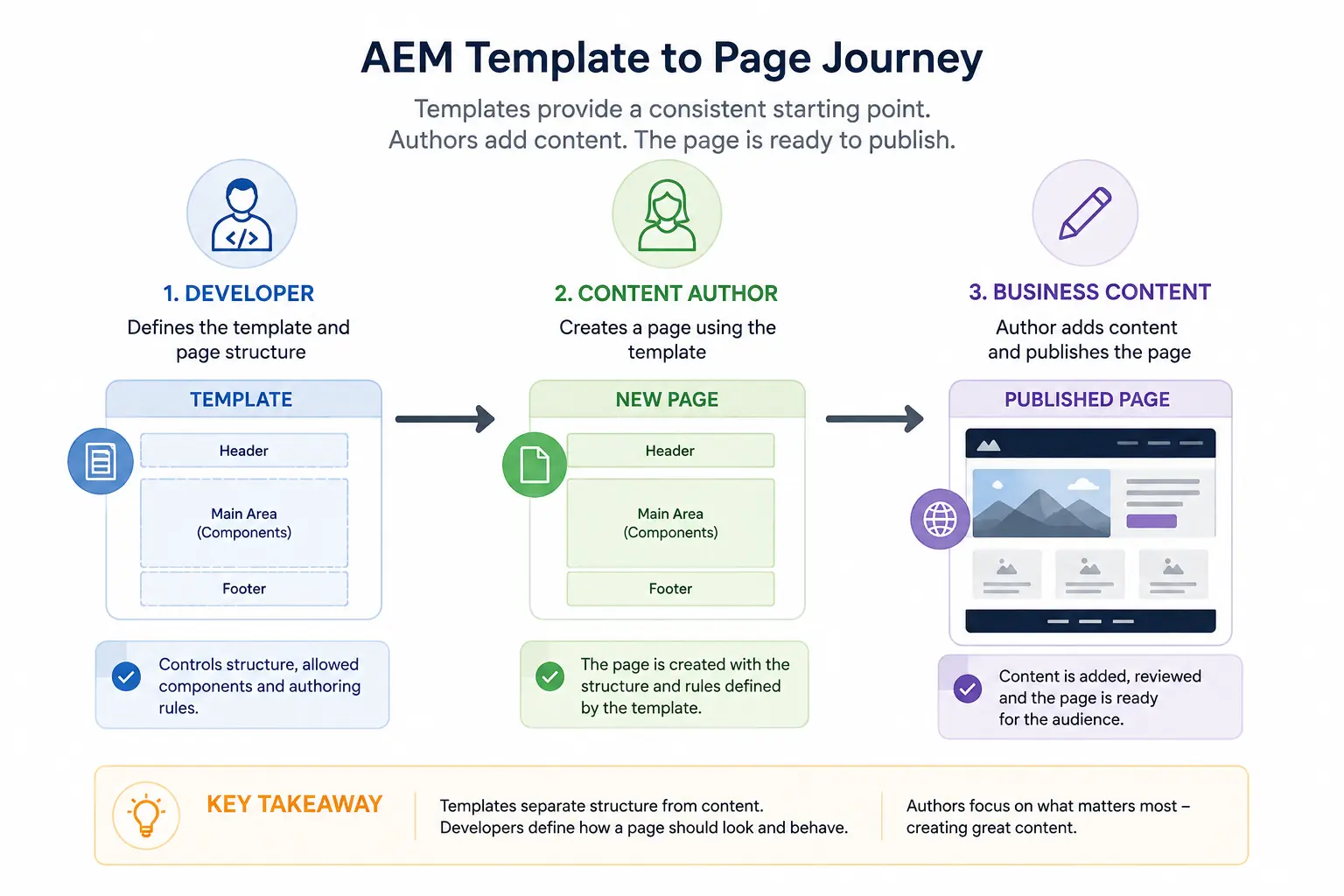
A template gives every new page a starting structure. An author selects a template, and the new page already has the required layout, allowed components, and authoring rules. The author works on the page content instead of rebuilding the page frame.
Think of a template as a reusable page blueprint. It defines how a page begins; the business content comes later.
Why Do We Need Templates?
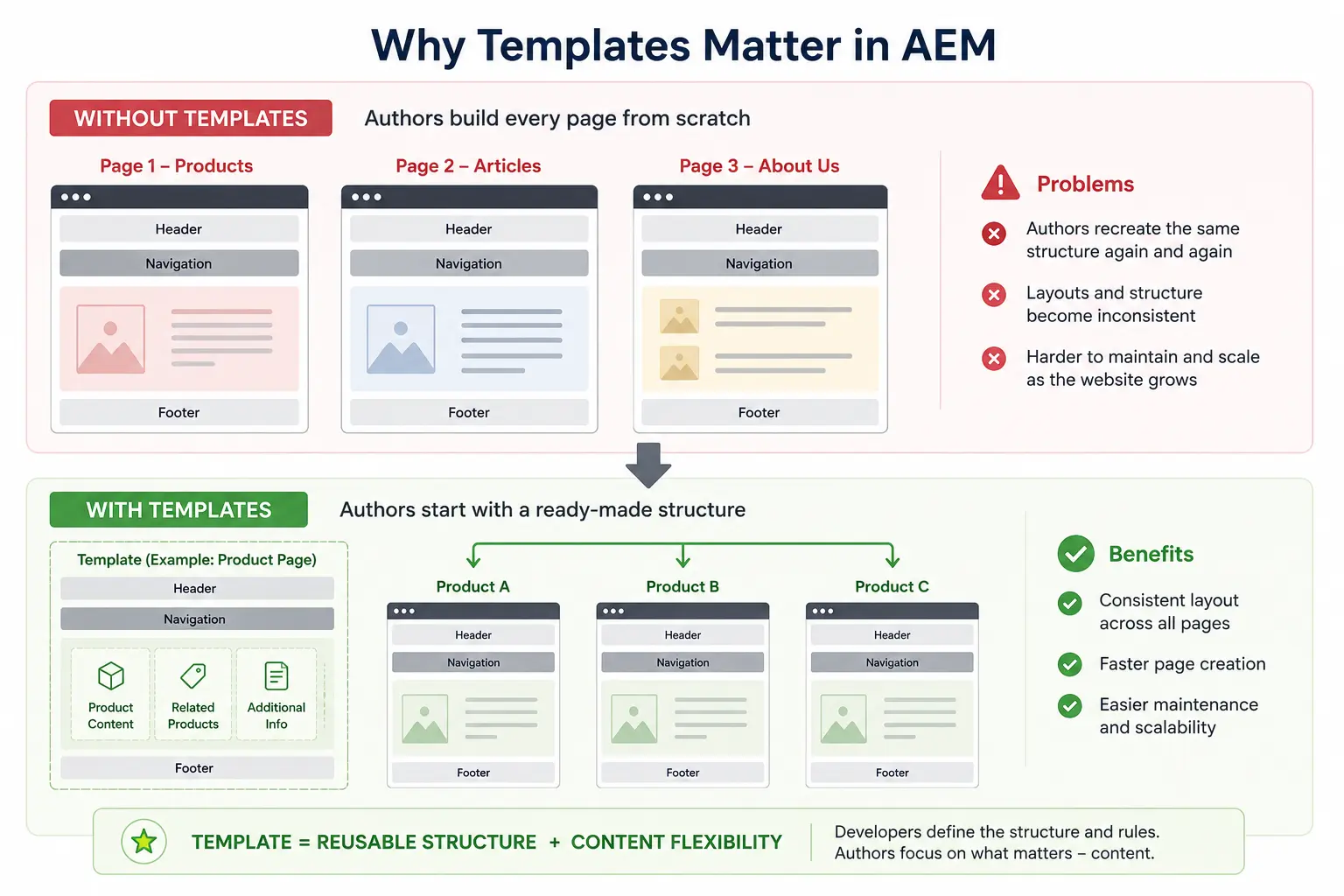
Consider a corporate site with product pages, news articles, and company-information pages. Each page needs the same header, navigation, and footer, but the main content area differs. Without templates, authors can make inconsistent layout decisions: a sidebar appears on one page type, navigation moves on another, and the footer is missing from a third.
Templates prevent that layout drift. Authors select the appropriate template and start with an approved page structure.
For example, a Product Page template might already include:
- Header
- Navigation
- Product Content Area
- Related Products Section
- Footer
An Article Page template might include:
- Header
- Navigation
- Article Content Area
- Author Information
- Related Articles
- Footer
The template makes that decision once, rather than leaving it to every page author.
Static Templates vs Editable Templates
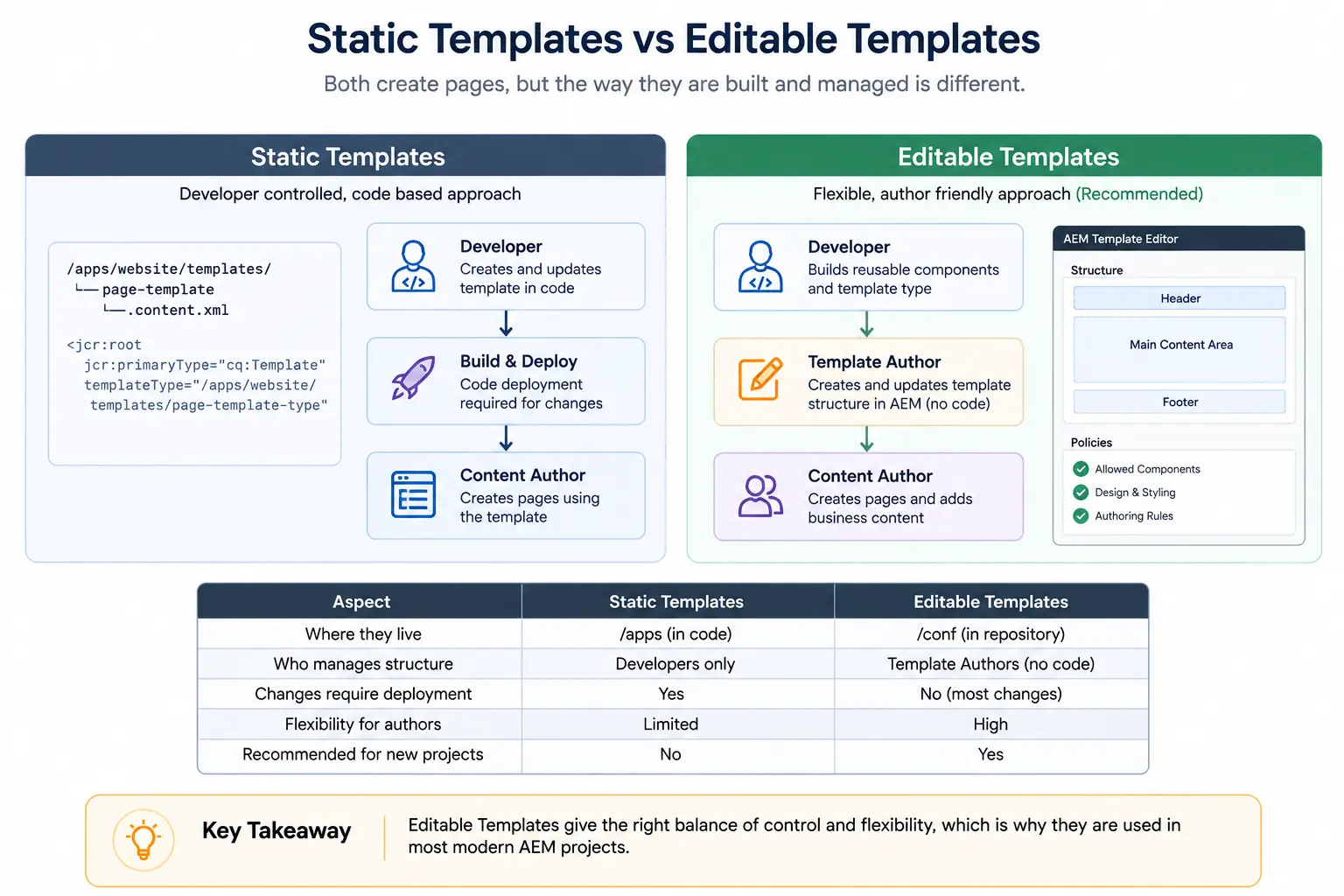
Earlier AEM implementations primarily used Static Templates. Editable Templates were introduced to give authorized template authors more control without requiring an application-code change for every template adjustment.
Static Templates
A Static Template is created entirely by developers.
The page structure, available components, and layout are defined in code. If the business team needs a change, such as adding a new component or updating the page layout, a developer must modify the template, deploy the code, and release it to the environment.
If a landing-page template needs a promotional banner, a developer updates the template code, deploys it, and then authors can use the updated template. Even a small structural change follows that release path.
Editable Templates
Editable Templates move template configuration into AEM-managed template structures rather than requiring those page structures to be defined entirely in application code.
Developers create reusable components and define the overall framework, while template authors configure page layouts, policies, and allowed components directly within AEM.
As a result, an authorized template author can make many approved template changes in AEM without changing application code. Those changes still need review and publication; a change to a template already used by pages can have a wide effect.
The responsibility is shared in a useful way. Developers provide components and the project framework. Template authors assemble approved components into reusable page structures. Content authors create and maintain page content.
That division keeps page architecture with the people who own it while leaving content work with authors. For new AEM Page Editor implementations, Editable Templates are generally the preferred approach.
How an Editable Template is Organized
An editable template is a group of related configuration branches, not one large component. Each branch has a separate job:
- Template Type – The starting definition AEM copies when a template author creates a template.
- Structure – Components that define the shared page frame. Locked components cannot be moved or deleted on resulting pages.
- Initial Content – Editable starter content copied to a page when it is created.
- Policies – Rules for available components, styles, and component configuration.
- Layout Container – A responsive area where page content can be arranged.
Together, these branches determine what the page contains, what an author can change, and what choices remain available after the page is created.
Understanding Structure and Initial Content
Editable templates separate shared page elements from starter content. Structure handles the first; Initial Content handles the second.
Structure
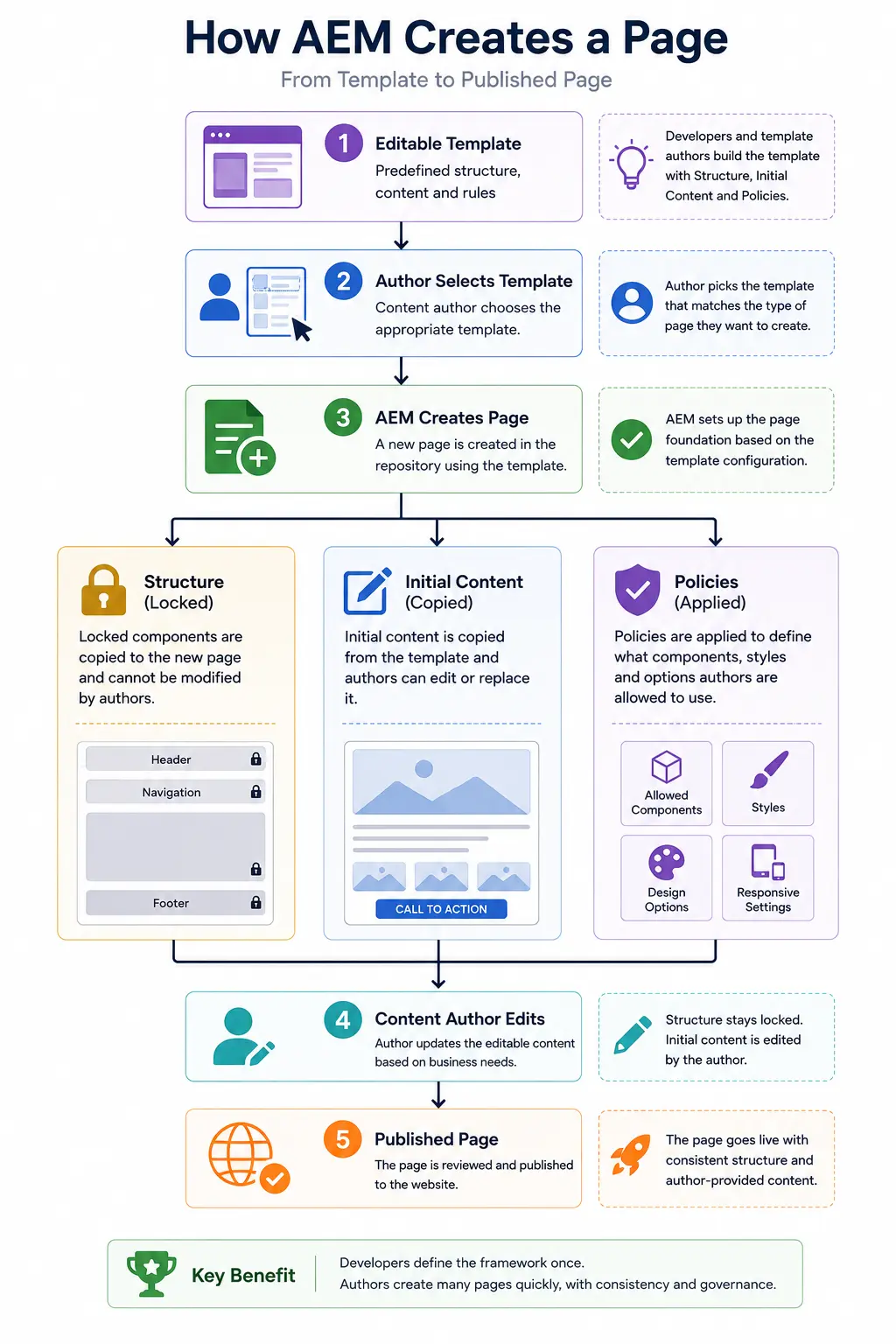
The Structure defines the parts of the page that should remain consistent. Components kept locked in Structure mode cannot be moved or deleted by page authors.
Typical examples include:
- Header
- Navigation
- Footer
- Experience Fragment components
- Mandatory Layout Containers
These elements keep the site frame consistent across pages.
Structure is not a safe place for casual changes after a template is in use. Changes to the structure, including locked content, can appear on existing pages created from that template. A template author should understand the impact and publish the template change when it is ready to go live.
Initial Content
The Initial Content section provides the starting content for a new page. It is copied when the page is created, and page authors can edit it afterward.
For example, a Landing Page template might include:
- A Hero Banner
- Introductory Text
- A Call-to-Action Button
- Placeholder Images
When an author creates a page, these components already exist, but their content can be updated without changing the template.
Later changes to Initial Content apply to pages created after that change. They do not rewrite content on pages that already exist.
Use Structure for content that must remain consistent. Use Initial Content for a useful starting state that a page author is expected to change.
How a Page is Created from a Template
A template must be enabled and allowed for the part of the site where the page is being created. Once it is available, the author selects it in the Create Page wizard.
AEM then creates the page with the template structure and copies the Initial Content into it. Policies control which components and styles are available. The author can then edit the page content within those boundaries.
Where Do Policies Fit?
Policies do not provide page structure or page content. They define the authoring options available within the template.
For example, a policy can determine:
- Which components are available inside a Layout Container
- Which styles can be applied to a component
- Design options such as spacing or responsive behavior
The next chapter covers policies: the rules that make those choices available, limited, and reusable across templates.
Example: campaign pages without template sprawl
An e-commerce team needs to publish a large set of seasonal campaign pages. The team creates a reusable Campaign Page template instead of asking developers to build each page.
The template already contains:
- A consistent page layout
- The required header and footer
- Responsive layout containers
- Approved components
- Default content placeholders
For each campaign, an author creates a page from the template, replaces the placeholders, and publishes it. The layout remains consistent while the campaign content changes.
The decision to carry forward
Use a template for the parts of a page type that should be shared and governed. Use Initial Content for a starting state that authors are expected to change. Treat changes to an enabled template carefully, because structure and policy changes can affect pages already using it.
Next: Template Policies define the allowed components, styles, and configuration choices inside that page boundary.
Enjoyed this chapter?
Get an email when I publish the next chapter. No spam — just new technical deep-dives.
Comments
Share feedback or questions about this blog post.
No comments yet. Be the first to share your thoughts.