Loading articles
Git · 6 of 11
Remotes, Fetch vs. Pull, and the Fork-and-PR Workflow
Fetch and pull look interchangeable until the day pull silently creates a merge commit you weren't expecting. Understanding what a remote-tracking branch actually is explains the difference, and sets up how forking, upstream, and pull requests fit together.
On this page9 sections
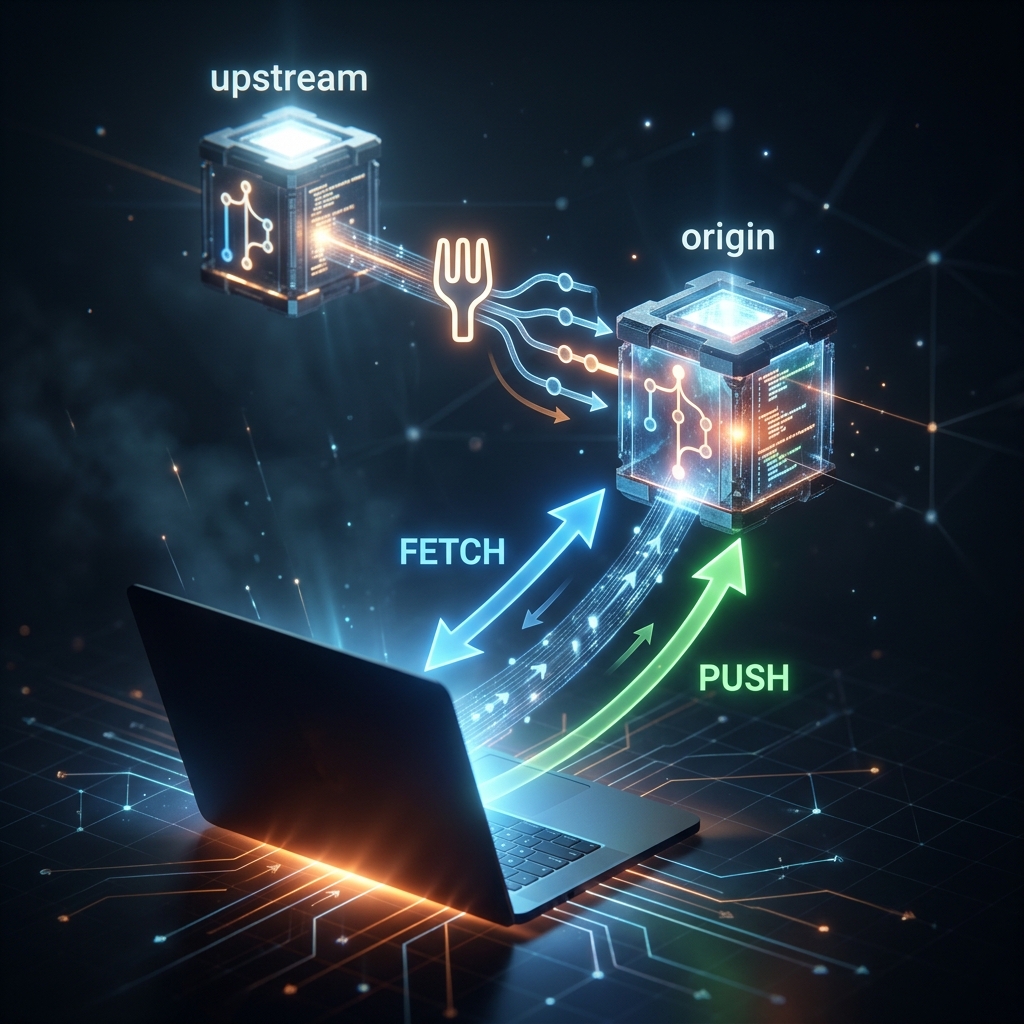
For a long time I used git pull as a reflexive "sync with the server" command without thinking about what it actually did.
Until it quietly created a merge commit in the middle of a feature branch because my local history and the remote's had diverged in ways I hadn't noticed.
pull isn't one operation — it's two glued together. Understanding what each half does on its own is what makes remotes, forking, and pull requests make sense as one coherent system instead of a handful of commands to memorize separately.
What a remote actually is
A remote is just a name pointing at a URL:
bash
git remote -v
text
origin  git@github.com:naveen/my-blog.git (fetch)
origin  git@github.com:naveen/my-blog.git (push)
origin is a convention, not a keyword — it's the default name Git gives the remote you cloned from. You can have more than one remote (covered below with upstream), and each is just a label plus a URL.
Remote-tracking branches — the missing concept
This is what makes fetch vs. pull click.
When you clone or fetch, Git doesn't merge the remote's commits into your local branches automatically. It downloads them into a separate set of branches called remote-tracking branches, namespaced under the remote's name:
text
origin/main
origin/feature-x
origin/hotfix-123
Think of these as read-only local bookmarks: "where the remote's branches were, as of the last time I checked."
Say the remote's main has moved to commit C4, but you haven't fetched yet — your origin/main still points at C3 from the last fetch. Your local main is a completely separate pointer that you move yourself, by merging or rebasing origin/main into it.
git fetch — download only, never touch local branches
bash
git fetch origin
Updates your remote-tracking branches (origin/main, etc.) to match the remote. It does not touch any of your local branches or your working directory.
fetch is always safe to run at any time, mid-work, without any risk of surprise merges.
bash
git log main..origin/main --oneline
This shows exactly what's new on the remote that you don't have locally yet — a great habit before deciding whether and how to bring those changes in.
- When to use: Run
git fetchfirst, look at what changed, then decide how to integrate it. Separating "download" from "integrate" gives you full control.
git pull — fetch, then merge (or rebase)
bash
git pull origin main
This is shorthand for two commands:
bash
git fetch origin
git merge origin/main
That second step is the part people forget is happening. If your local main has commits the remote doesn't (you committed locally without pushing yet), this merge step is a real three-way merge — complete with the possibility of a conflict or an automatic merge commit you weren't expecting.
Pull with rebase instead
bash
git pull --rebase origin main
Does fetch then rebase origin/main instead of merge — replays your local-only commits on top of the remote's, producing linear history instead of a merge commit.
Many teams set this as the default:
bash
git config --global pull.rebase true
Specifically to avoid accumulating small Merge branch 'main' into main commits from routine syncing.
--rebaserewrites your local commits (new hashes), so it has the same shared-branch caution as any other rebase. On a private feature branch: safe. On something others have already pulled: use plain--mergeinstead.
git push — uploading your commits
bash
git push origin main
Uploads your local main's commits to the remote, then updates your origin/main remote-tracking branch to match.
Git rejects this if the remote has commits you don't have locally yet — a "non-fast-forward" error. That's Git protecting you from silently overwriting someone else's work.
text
! [rejected] main -> main (fetch first)
The fix: fetch first, reconcile locally, then push.
bash
git push -u origin feature-login
The -u (--set-upstream) flag links your local branch to origin/feature-login, so future plain git push/git pull on this branch know which remote to talk to.
The fork-and-pull-request workflow
On projects where you don't have direct push access — all open source and many company repos with protected branches — the workflow adds one more remote.
You fork the original repo on GitHub (which creates a copy under your account), clone your fork locally, and add the original repo as a second remote called upstream. Now you have two remotes: origin pointing at your fork (where you push) and upstream pointing at the real project (where you pull updates from).
Step by step
-
Fork — GitHub creates your own copy of the repository under your account. Server-side copy, not a Git operation.
-
Clone your fork (not the original):
bashgit clone git@github.com:you/project.gitYour fork becomes
originautomatically. -
Add the original as
upstream:bashgit remote add upstream git@github.com:original-owner/project.git -
Keep your fork in sync with the real project:
bashgit fetch upstream git merge upstream/main git push origin main -
Do your work on a branch, push to
origin, then open a pull request comparing your fork's branch against the original'smain.
- Two remotes, two different roles:
originis "where I push my work."upstreamis "where I pull the project's real progress from." Mixing them up — or forgetting to sync fromupstreambefore starting new work — is one of the most common fork workflow mistakes.
If your machine uses separate GitHub accounts for work and personal repositories, the remote URL also needs to select the intended SSH identity. The multiple accounts post covers that setup.
Quick reference
| Command | What it does |
|---|---|
git remote -v | List all remotes and their URLs |
git fetch origin | Download new commits, don't touch local branches |
git pull origin main | fetch + merge (may create merge commit) |
git pull --rebase origin main | fetch + rebase (linear history) |
git push origin main | Upload commits to remote |
git push -u origin <branch> | Upload + link branch to remote |
git remote add upstream <url> | Add a second remote (fork workflow) |
Everything so far treats Git as a black box that just works. The next chapter opens that box: what a commit, tree, and blob actually are inside the .git directory, how object hashes make the whole history tamper-evident, and what git gc and shallow clones are actually doing under the hood.
Enjoyed this chapter?
Get an email when I publish the next chapter. No spam — just new technical deep-dives.
Comments
Share feedback or questions about this blog post.
No comments yet. Be the first to share your thoughts.