Loading articles
Git · 7 of 11
Git Internals: Objects, the .git Directory, and What a Commit Really Is
A commit is not a diff, a branch is not a folder, and .git is not a black box — it's a content-addressed key-value store with four object types. Once that clicks, git gc, shallow clones, and "detached HEAD" all stop being magic.
On this page13 sections
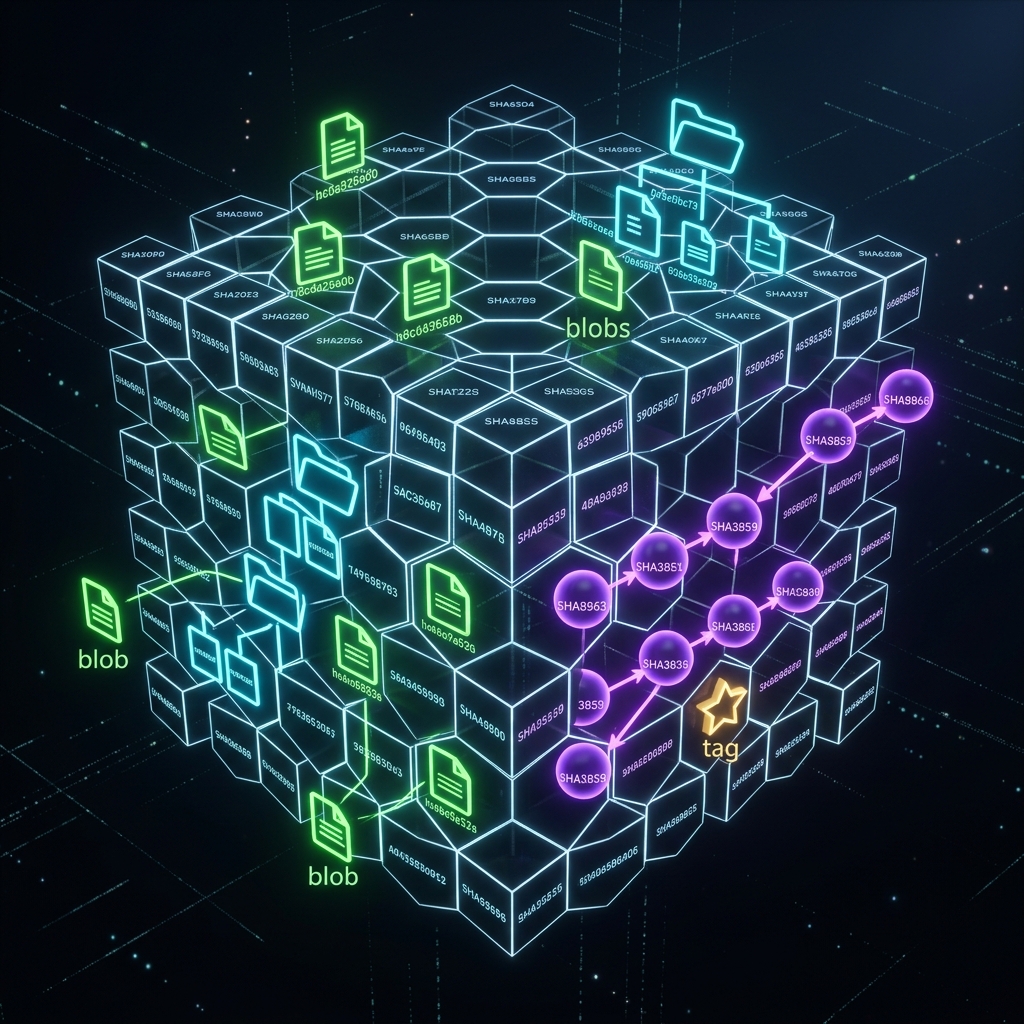
I spent my first year of Git treating .git as a directory you never open — like the internals of a car engine. You drive it, you don't take it apart.
Then I started seeing weird behavior I couldn't explain: why does rebasing change commit hashes? Why are branches so cheap? Why does switching branches feel instant on a 10,000-commit repo?
Every answer traces back to the same handful of things inside that .git directory. Once I actually looked at what was in there, all of it clicked at once — not just the internals, but why every command from the previous six chapters behaves the way it does.
The .git directory is the whole repository
Everything Git knows about your project lives in one folder:
bash
ls .git/
text
HEAD       ← which branch you're on right now
config     ← repository-level config (remotes, settings)
hooks/     ← scripts that run at specific Git events
index      ← the staging area, in binary form
objects/   ← every commit, every file, every bit of history
refs/      ← branch and tag references (usually small files containing object IDs)
Delete objects/ and refs/ and your project's full history is gone. Everything else is metadata and plumbing.
The four object types — everything Git stores
Every object is compressed, named by a hash of its own content, and stored under .git/objects/. SHA-1 is the default object format; Git also supports SHA-256 repositories.
This is a content-addressed store: the name of a piece of data is a hash of that data. Two identical files anywhere in your history are literally the same object on disk — stored once, referenced many times.
Blob
The raw contents of a file — no filename, no path, no permissions attached at all.
Two files with identical content, in different folders, are the exact same blob. The filename lives elsewhere.
Tree
A directory listing: a set of entries each pointing at either a blob (file) or another tree (subdirectory), along with filenames and modes.
This is where filenames actually live — not in the blob. A tree entry says "the file called README.md has content stored in blob a1b2c3d." Another entry might point at a subtree for a subdirectory like src/.
Commit
Points at one tree (the complete snapshot of the entire project) and one or more parent commits. It also stores the author, committer, and commit message.
There is no diff in a commit object. Any diff you see in git log -p or git diff is computed on the fly by comparing two trees. Nothing diff-shaped is stored on disk.
Tag (annotated)
A named tag object, usually pointing at a specific commit, with its own message and optional GPG signature. Tags are normally treated as immutable release markers; unlike a branch, they are not expected to move, though Git can technically update a tag reference.
Inspecting objects directly
You can look at any of these directly:
bash
git cat-file -t HEAD          # show type of object HEAD points to: "commit"
git cat-file -p HEAD          # show the commit object contents
git cat-file -p HEAD^{tree}   # show the tree the commit points to
git ls-tree HEAD              # friendlier listing of the same tree
Running git cat-file -p HEAD shows exactly what's described above — a tree line, parent lines, author/committer lines, and a message. No diff. This is the most convincing proof that "a commit is a snapshot, not a diff."
Why this makes the whole history tamper-evident
A commit's hash is computed from its content, which includes the hash of its parent commit.
text
Commit C's object ID = hash(tree_hash + parent_hash + message + author + ...)
Change anything in an old commit — the message, the tree, the parent — and its hash changes. Since every later commit's hash depends on its parent's hash, changing one commit changes the hash of every commit after it.
This is exactly why rebasing "changes commit hashes": replaying a commit onto a new parent produces a new hash, because the parent reference is part of the commit's own content.
It also means: if origin/main and your local main point at the same commit hash, their entire histories back to the very first commit are guaranteed identical — not just "probably the same."
git gc and pruning — cleaning up loose objects
New objects are initially written individually ("loose objects"), one file per object. Over time Git repacks them into compressed pack files for efficiency:
bash
git gc
This also removes objects that are no longer reachable from any branch, tag, or reflog entry.
This is why reflog expiry matters: a "deleted" commit is only actually removed once it's:
- Unreachable from any branch or tag
- Aged out of the reflog (often 90 days for reachable entries; unreachable entries can expire sooner)
gchas run
Before all three happen, it's still sitting in objects/, recoverable.
I once "permanently deleted" a branch, then recovered it three weeks later via git reflog — the commit was still right there, completely intact. Git is far more conservative about throwing things away than it looks.
bash
git prune
Removes only loose objects that are unreachable and not protected by the reflog — gc calls this internally.
Shallow and sparse clones
Cloning a large, old repository downloads every object in its entire history by default — sometimes far more than you need just to work on the current code.
Shallow clone
bash
git clone --depth 1 git@github.com:org/huge-repo.git
Downloads only the most recent commit, not the full history. Fast to clone, but git log beyond that depth won't work, and some rebase operations need more history than you have.
bash
git fetch --unshallow # download the full history afterward if needed
- Used heavily in CI pipelines that only need to build the current commit. No point downloading 10 years of history just to run
npm test.
Sparse checkout
bash
git sparse-checkout set src/frontend
Downloads the full commit history (all metadata) but only populates your working directory with the paths you specify.
- Used on large monorepos where you work in one subdirectory and don't want every other team's 50,000 files cluttering your checkout.
The mental model — everything traces back here
The .git directory boils down to three things: refs/ holds branches and tags (which are just movable pointers to commit hashes), objects/ holds every commit, tree, and blob that makes up your project's full history, and HEAD tells Git which branch you're currently on.
Once this model is solid, new Git commands stop being things to memorize and start being things you can reason about from first principles. Rebasing changes hashes because commits reference their parents. Branches are cheap because their references are small. Diffs are computed by comparing two trees.
This was the chapter that turned Git from a tool I used to a tool I understood. Everything else after this felt like consequences, not new things to memorize.
The next chapter covers the three main ways Git extends past tracking text files: hooks that run scripts at specific points, submodules for embedding one repository inside another, and LFS for handling large binary files without bloating the object store described above.
Enjoyed this chapter?
Get an email when I publish the next chapter. No spam — just new technical deep-dives.
Comments
Share feedback or questions about this blog post.
No comments yet. Be the first to share your thoughts.